
How to Reverse Image Search on Chrome: Lens, Bing and TinEye
· 9 min read
Short answer
To reverse image search on Chrome, right-click any picture and choose Search with Google Lens; results open in a side panel. On Android or iPhone, touch and hold the image instead. Google must be Chrome’s default search engine. Bing and TinEye add their own right-click options through official extensions, and Yandex works through its upload page.
Reverse image search is built into Chrome, but the menu wording has changed more than once. That is why so many older guides describe options you will not find. The engine behind it is Google Lens, which Google said in October 2024 handles nearly 20 billion visual searches every month.
This guide covers the built-in option on a computer and a phone, a page search that works where right-clicking does not, how to add Bing and TinEye, and the one question reverse search cannot answer.
How do you reverse image search on Chrome on a computer?
Right-click the image and choose Search with Google Lens. Results open in a side panel next to the page. The steps are the same on Windows, Mac and a Chromebook, and Google has to be Chrome’s default search engine for the option to appear.
- Step 1Check your default search engineOpen the three-dot More menu, then Settings and Search engine. If another engine is set, choose Change and pick Google. Google’s help pages list this as a requirement for Lens.
- Step 2Right-click the pictureOn a Mac, hold Control while you click. On a Chromebook, tap the touchpad with two fingers, or press Alt and click.
- Step 3Choose Search with Google LensGoogle says the results can include what is in the image, similar images, and websites that use the same or a similar image.
- Step 4Open a resultResults stay in the side panel. Selecting one opens it in a new tab, so the page you started from stays put.
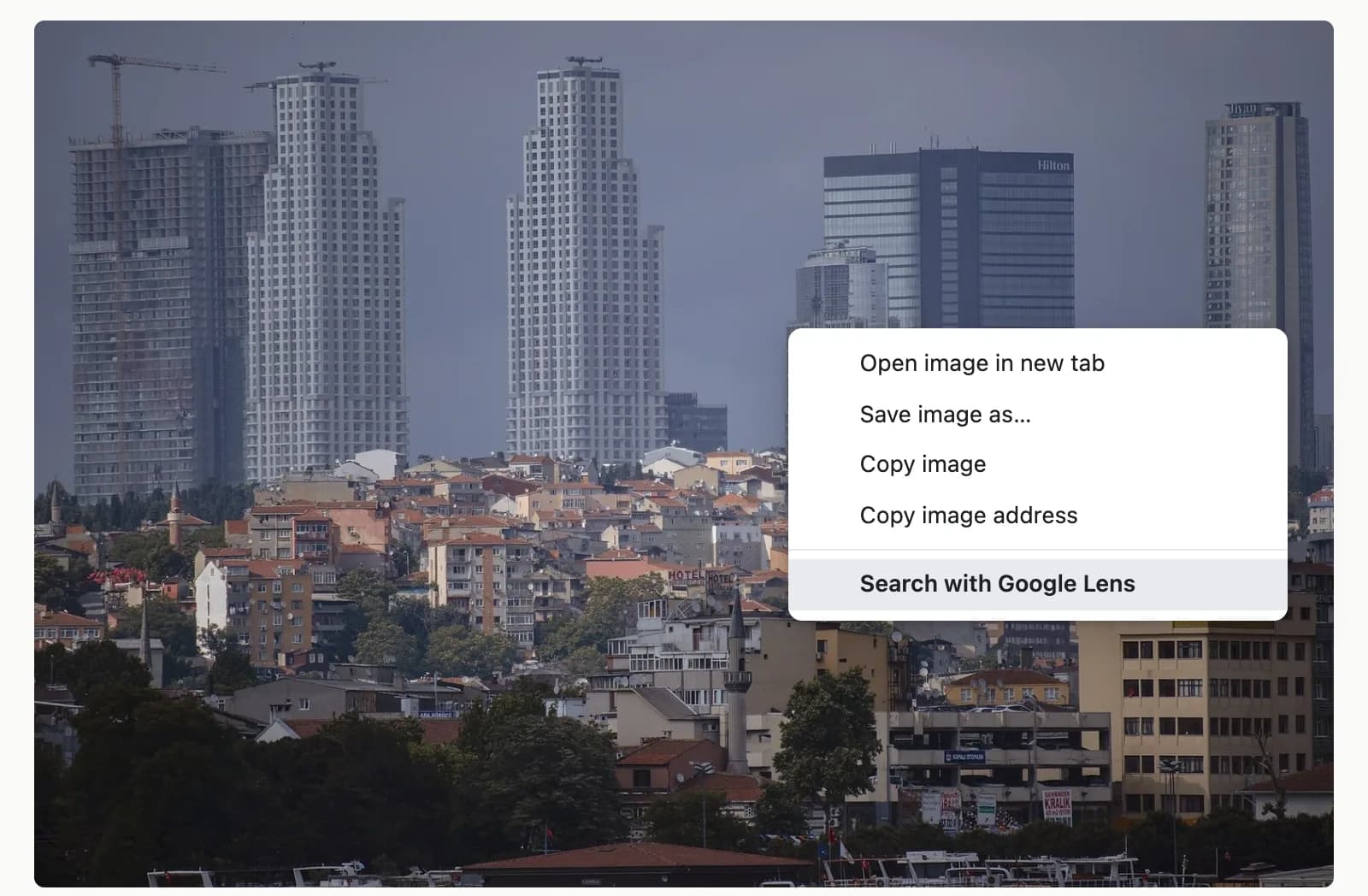
The picture does not have to be on a web page. On google.com, Search by image takes a file from your computer, an image dragged into the search box, or a pasted image link.
What is the option called on each device?
It depends on the device. Google’s help pages call it Search with Google Lens on a computer, Search image with Google Lens in Chrome for Android, and Search image with Google in Chrome for iPhone and iPad. On a phone you touch and hold the image instead of right-clicking.
| Device | How to open the menu | Option to choose | Where results appear |
|---|---|---|---|
| Windows or Chromebook | Right-click the image (Chromebook: two-finger tap, or Alt and click) | Search with Google Lens | Side panel |
| Mac | Control-click the image | Search with Google Lens | Side panel |
| Android | Touch and hold the image | Search image with Google Lens | Panel at the bottom of the screen |
| iPhone or iPad | Touch and hold the image | Search image with Google | Panel at the bottom of the screen |
On Android you can drag the corners of the box to search only part of the image. On both phones, Google again says Google must be Chrome’s default search engine. The full phone routes, including photos already in your camera roll, are in how to reverse image search on your phone.
Why is the Lens option missing from your right-click menu?
Usually because Google is not Chrome’s default search engine. Chrome builds the item from whichever engine is set. Of the five engines Chrome offers in the US, only Google and Microsoft Bing define an image search, so with DuckDuckGo, Brave or Ecosia the item disappears.
Google’s own help page for the setting warns that a Chrome feature might not be available if your search engine does not support it. Chromium, the open-source code Chrome is built on, shows the detail. The image item is only added when the default engine has an image-search address, and in the US list only Google and Bing have one. With Bing as the default, the item searches Bing instead of Google.
Two other causes are worth checking. Some sites block the right-click menu, and some pictures are page backgrounds rather than images, so the image options never appear. The page search described below gets around both. On a work or school computer, an administrator may manage the search engine or switch the Lens panel off. If the panel is off, Chrome shows a plainer label, Search image with Google, which still sends the picture to Google.
What happened to Search Google for image?
Current Chrome no longer shows it; the Google Lens option takes its place, so guides that tell you to click it are out of date. Lens results still list websites that use the same or a similar image, which was the point of the old option.
If what you really want is the first place a picture appeared, there is a better fit. TinEye’s Chrome extension can open its results sorted by oldest, and the TinEye guide explains why that sort matters.
How do you search part of a page with Lens?
Open the three-dot More menu and choose Search this tab with Google Lens, then click an object or drag a box around the part you want. Lens works from a screenshot of the tab, so it also reaches things the image menu cannot, such as a frame of a video.
It is also a quick way to crop. Google’s own tip is that a smaller selection gives more specific results, and dragging a box does that without saving or editing a file. A single shopfront beats a whole street. Which engine to try first for a place is a separate question, answered in Google Lens vs Yandex.
You can pin the option to the toolbar, or reach it by right-clicking an empty part of a page. One privacy point: Google says it receives a screenshot of the page, keeps it only for that search, and does not use it for training. Even so, avoid running it on a tab that shows something private, such as an open inbox.
How do you use Bing, TinEye or Yandex from Chrome?
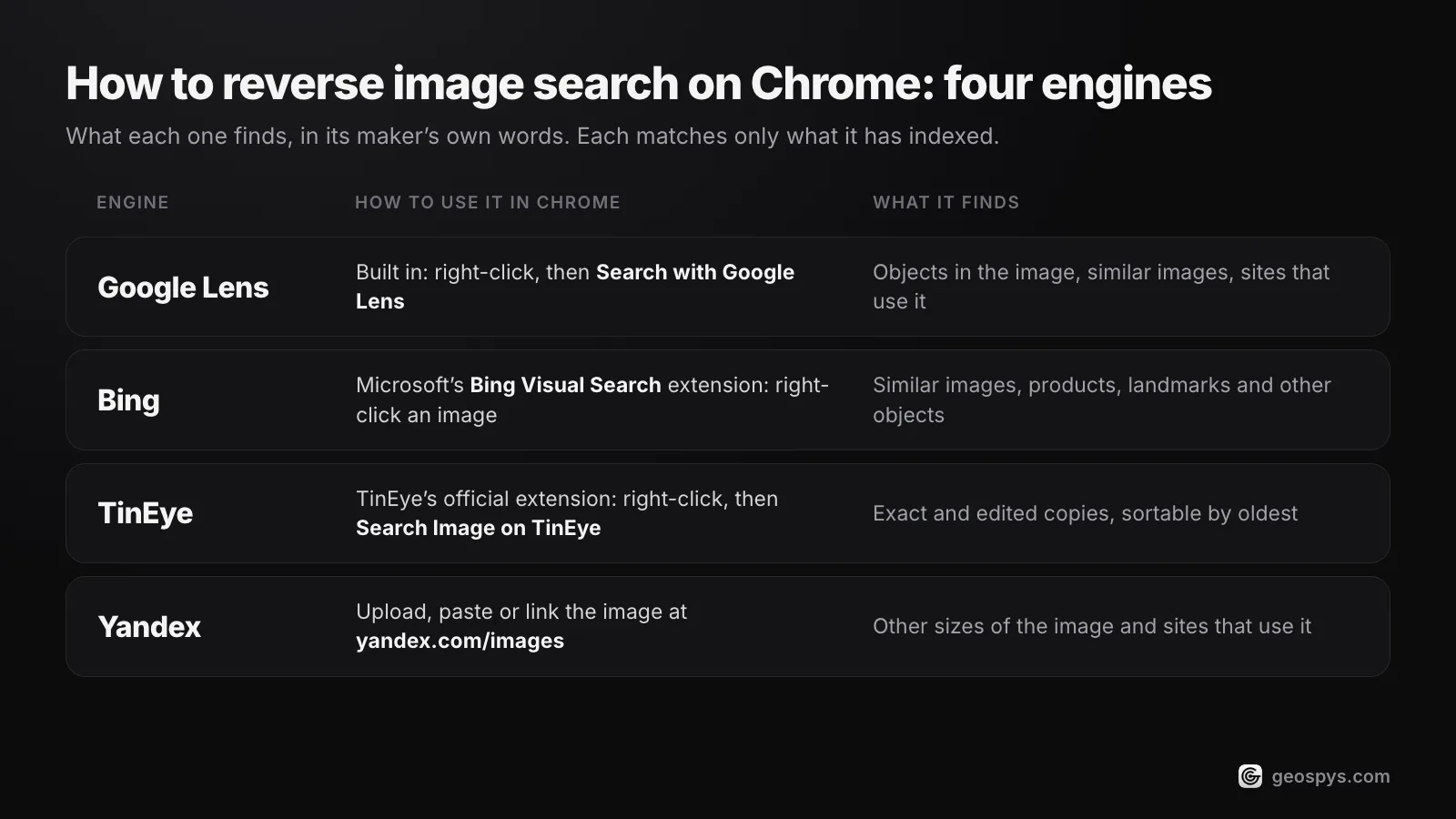
TinEye and Microsoft both publish official Chrome extensions that add their own right-click option to images. Yandex documents its right-click search only for Yandex Browser, so in Chrome you upload, paste or link the image on the Yandex Images website.
| Engine | How to use it in Chrome | What it finds |
|---|---|---|
| Google Lens | Built in: right-click, then Search with Google Lens | Objects in the image, similar images, sites that use it |
| Bing | Microsoft’s Bing Visual Search extension: right-click an image | Similar images, products, landmarks and other objects |
| TinEye | TinEye’s official extension: right-click, then Search Image on TinEye | Exact and edited copies, sortable by oldest |
| Yandex | Upload, paste or link the image at yandex.com/images | Other sizes of the image and sites that use it |
Each engine can only match what it has indexed, so the same picture can draw a blank on one and match on another. Running two of them costs a minute. For Yandex, open yandex.com/images and press the image-search button to the right of the search bar. It accepts a file, a pasted image or an image address.
TinEye is the odd one out. It looks for copies of the same file, including crops, resizes and edits, not different photos of the same subject. Extensions that bundle dozens of engines into one menu also exist, but they come from third parties and handle every image you send through them. Check who makes one, and what it asks permission to do, before installing.
Can reverse image search tell you where a photo was taken?
Only when the photo, or another picture of the same place, is already online on a page that names the location. Reverse search compares your picture with images that have already been published. A private photo of an ordinary street usually returns lookalikes, not a place.
The engines say as much themselves. Yandex notes that results depend on whether an image exists online and has been indexed. TinEye says it does not usually find different photos of the same subject, and it does not typically index social media images. A holiday photo that only ever lived in a group chat has nothing to match.
Two checks come first. If the file still carries GPS coordinates in its metadata, those answer it directly, and here is how to read them. If not, the question changes from "where else is this picture online?" to "what place does this scene show?" That is a job for reading location from visual clues, not for matching.
That is what the GeoSpy extension adds to the same right-click menu. Choose Find where this photo was taken and a side panel shows the estimated place, a confidence percentage and a map, with Open in Google Maps and Copy coordinates buttons. If a JPEG still has GPS data in its EXIF, the answer comes from that. Otherwise it is an AI estimate based on what the picture shows.
The extension is free to install, but analysis needs a geospys.com account with GeoSpy Premium, at US$7.99 a week or US$29.99 a year. Nothing is read until you right-click an image. Its permissions cover the right-click menu, the side panel, the active tab, scripting and storage, and its only host access is geospys.com. More on the extension page.
Frequently asked questions
- Is reverse image search in Chrome free?
- Yes, for personal use. The Lens option is built into Chrome, TinEye is free for non-commercial use and calls its extension free, and Microsoft presents Bing Visual Search as a free tool.
- How do you reverse image search on a Chromebook?
- The same way as on Windows or a Mac, because a Chromebook runs the desktop version of Chrome. Tap the touchpad with two fingers, or press Alt and click, then choose Search with Google Lens.
- Can you reverse image search a photo saved on your computer?
- Yes. On google.com, click Search by image, then Upload a file, or drag the file into the search box. Bing, Yandex and TinEye also take uploads, dragged files or pasted images on their own sites.
- Does Google keep the images you search with Lens in Chrome?
- Google says Lens in Chrome sends a screenshot of the page for processing, keeps it only temporarily for that search, and does not use it for training. The part you select goes to Google Search, so it can appear in your Search activity, which you can delete in My Google Activity.
Sources
- Search with Google Lens in Chrome — Google Chrome HelpCurrent labels on computer, Android and iPhone; Search this tab with Google Lens; Google as default search engine; how page screenshots are processed.
- Search with an image on Google — Google Search HelpPer-device wording (Search with Google Lens, Search image with Google Lens, Search image with Google), what results include, upload and image-link search.
- Set default search engine and site search shortcuts — Google Chrome HelpSettings path, and the warning that a Chrome feature might not be available if your search engine does not support it.
- Google updates: AI-organized Search, Google Lens, and more — Google (The Keyword)October 3, 2024: Lens is used for nearly 20 billion visual searches every month.
- 3 new Chrome AI features for even more helpful browsing — Google (The Keyword)August 1, 2024: Lens in Chrome on desktop, selecting anything on a page, including video, from the address bar, right-click or three-dot menu.
- Search engine definitions used by Chromium — The Chromium ProjectsChrome’s US list has 5 engines; only Google and Microsoft Bing define an image search URL (prepopulated_engines.json, regional_settings.json).
- Chrome context menu source (render_view_context_menu.cc) — The Chromium ProjectsThe image search item is skipped when the default engine has no image search; the fallback label is Search image with [engine].
- Using TinEye for Chrome — TinEyeRight-click Search Image on TinEye; results can be ordered by Oldest.
- How does TinEye work? — TinEyeFinds copies, including cropped, edited and resized ones, not different images of the same subject.
- About the TinEye index — TinEyeSocial media images (Facebook, Instagram, Twitter) are not typically added to the index.
- Is TinEye free to use? — TinEyeFree for non-commercial use; the paid API is for commercial use.
- Bing Visual Search — Microsoft BingLinks Microsoft’s Bing Visual Search extension for Chrome and lists what Visual Search finds.
- Image search — Yandex Images HelpUpload, paste or link an image; right-click search only in Yandex Browser; results depend on what Yandex has indexed.
- Use your Chromebook touchpad — Chromebook HelpRight-click by tapping with two fingers, or by pressing Alt and clicking.
- Right-click on Mac — Apple SupportControl-click opens shortcut menus.
Keep reading
The Best Reverse Image Search Tools, Compared
Google Lens, Yandex, Bing and TinEye do different things. A comparison of what each engine is good at, and when to reach for AI geolocation instead.
· 6 min read
How to Reverse Image Search on Your Phone
Every engine works from a mobile browser, no app required. The routes on iPhone and Android, plus the cropping step that decides whether you get a result.
· 4 min read
Google Lens vs Yandex: Which Finds Places Better?
Two engines that fail on different photos. Which one to reach for when the subject is a building, a product, a landmark or an ordinary street.
· 4 min read
The Best OSINT Chrome Extensions for Image Investigations
Eight OSINT Chrome extensions for checking images, plus Google Lens in Chrome: who makes each, what it costs, what it can read and when to use it.
· 11 min read