
What Is This Building? Identify a Building From a Photo
Upload a photo of the building
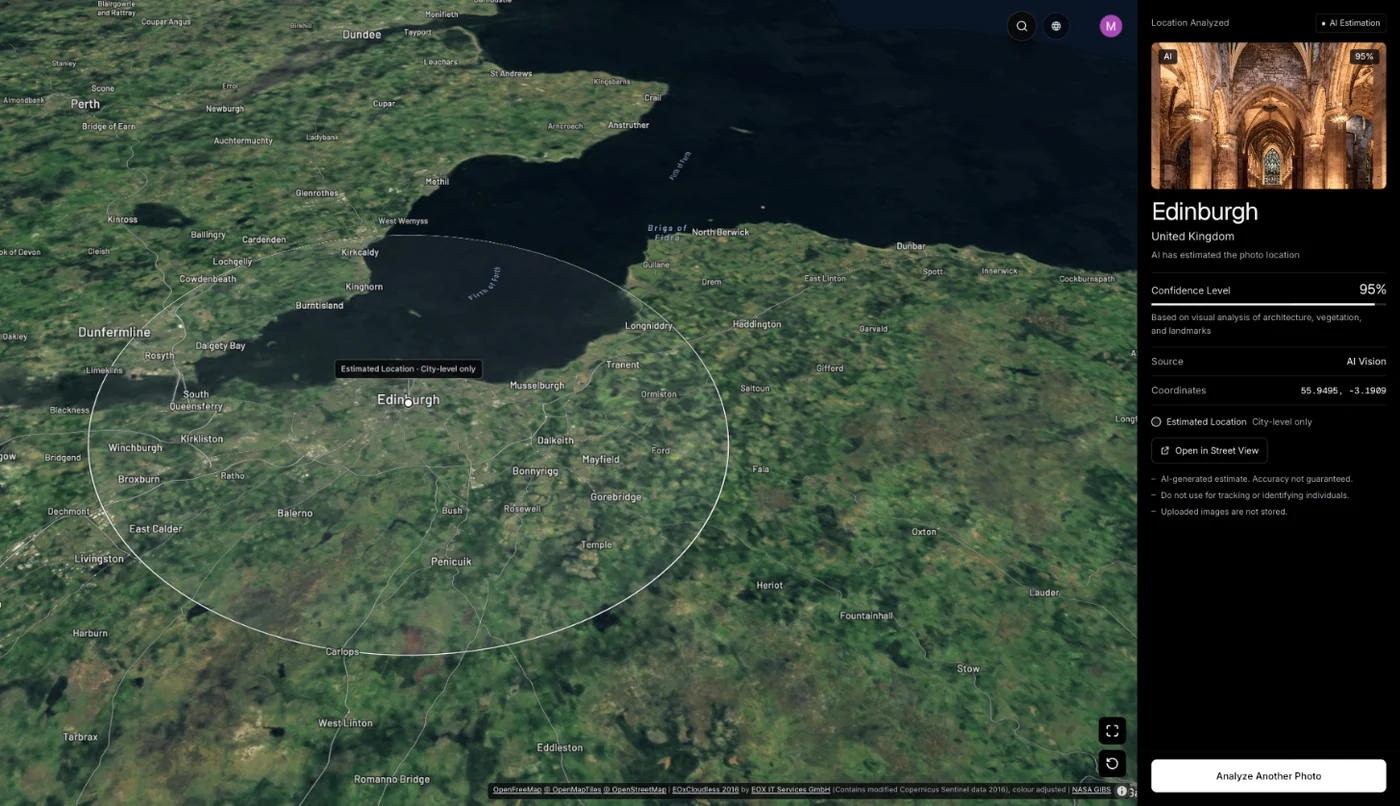
GeoSpy AI reads any GPS in the file, and otherwise estimates the city and country from the building’s style, materials, signs and surroundings.
By Sam D. · · 4 min read
Short answer
To identify a building from a photo, try Google Lens or the iPhone’s Visual Look Up first: both name famous landmarks in seconds. An ordinary building rarely has a name to find, so the useful question is where it stands, and GeoSpy AI estimates the city from its architecture, materials, signs and street.
What is this building: a landmark or an ordinary one?
Decide that first. A landmark has a name that image recognition can find; an ordinary house, office or shop does not, and the answer you can get is its location.
Landmark recognition works because famous buildings are photographed millions of times and labelled. Google Lens, Bing Visual Search and Apple’s Visual Look Up match your picture against those collections and return a name, often with a link. Identifying a landmark from a photo covers each of them step by step.
An apartment block in Lisbon or a church in rural Ohio is a different problem. Nobody has labelled it, so there is nothing to match. What it still has is evidence: the way it was built, what it is built from, and the street around it.
How do you identify a famous building from a photo?
Run the photo through Google Lens or, on an iPhone, open it in Photos and tap the Visual Look Up icon. A match gives you the name and usually a link.
- Step 1Google LensIn the Google app or Chrome, search with the photo and look at the top match; on a computer, right-click the image and choose to search it with Google.
- Step 2Visual Look UpIn the iPhone Photos app, a star on the info button means iOS recognised something; tap it, then the landmark suggestion.
- Step 3A second opinionBing Visual Search and Yandex sometimes name buildings Lens misses, especially outside the United States and Western Europe.
What clues reveal where an ordinary building is?
Its roof and walls, its windows, the script on nearby signs, the street furniture and the plants around it. Each narrows the region; together they often point to a city.
- Roof pitch and materials: steep roofs for snow, flat roofs in dry climates, clay tiles around the Mediterranean.
- Walls: brick, painted wood siding, stucco or concrete tell you about local tradition and climate.
- Windows and balconies: shutters, bay windows and enclosed balconies are strongly regional.
- Signs: the alphabet, the language and the shape of street-name plates.
- The street: curbs, poles, bollards, road markings and the side cars park on.
These are the same details people learn for telling countries apart from a photo, and the same ones an AI model reads. One of the sample results shown on this site is a street of San Francisco’s Victorian row houses, with no GPS in the file, placed in San Francisco, USA, with 100% confidence.
Can you find a building’s address from a photo?
Only if the file still has GPS coordinates, or if you confirm the spot yourself in Street View. An estimate from the picture gives a city or district, not an address.
If the photo came straight from a phone, its GPS coordinates may still be in the file and point to the exact spot. Otherwise the estimate gives you an area, and narrowing it to a street is manual work in Street View and satellite imagery, the way an OSINT geolocation workflow does it.
On the website, photo analysis comes with a weekly or yearly subscription that you can cancel any time, or a one-time purchase for a single photo; the GeoSpy iPhone app has a free trial. How the photo location finder works has the details.
Frequently asked questions
- What app can identify a building from a picture?
- Google Lens and Apple’s Visual Look Up name well-known buildings. For an ordinary building with no name to find, a location estimate such as GeoSpy AI tells you where it probably is.
- Can Google Lens identify buildings?
- Yes, famous ones and many notable ones. It struggles with ordinary houses and offices, because there is no labelled photo of them to match.
- How do I find the name of a building in a photo?
- Search the photo with Google Lens or Visual Look Up first. If nothing matches, find where it is from the clues in the picture, then look at the street in Google Maps to see the building’s name or address.
- Can I find out where a building is from a photo?
- Usually to the city or district, from its style, materials and the signs around it. The exact address needs GPS in the file or a manual check in Street View.
- Is it free?
- Google Lens and Visual Look Up are free. On this website, photo analysis comes with a subscription or a one-time purchase for a single photo; the GeoSpy iPhone app has a free trial.
Sources
- Look up what’s in a photo with your iPhone or iPad — Apple SupportHow Visual Look Up recognises landmarks in Photos.
- Get info about your photos & surroundings — Google Search HelpSearching with an image in Google Lens.
- Detect landmarks — Google Cloud Vision documentationLandmark detection returns a name and coordinates only for recognised landmarks.
- GPS Accuracy — GPS.govSmartphones are typically accurate to within 4.9 m under open sky, which is why GPS in a file beats any estimate.
Keep reading
How to Identify a Landmark From a Photo
Name a landmark or building from a picture with Google Lens, iPhone Visual Look Up, Bing or Yandex, and what to do when the building is not famous.
· 12 min read
How to Identify a Country From Photo Clues
Regulated things beat natural things. The clues that change abruptly at borders, ordered by how much each one narrows the search and how fast you can read it.
· 4 min read
An OSINT Photo Geolocation Workflow
A repeatable order for placing an image, the discipline that keeps it honest, and the point where continuing stops being research and becomes surveillance.
· 4 min read
Google Lens vs Yandex: Which Finds Places Better?
Two engines that fail on different photos. Which one to reach for when the subject is a building, a product, a landmark or an ordinary street.
· 4 min read
What Is This Statue? How to Identify Statues and Monuments
What is this statue? Read the inscription on the base, identify the figure, check public art catalogs and run an image search to name it and find its place.
· 7 min read