
The Best OSINT Chrome Extensions for Image Investigations
· 11 min read
Short answer
The most useful OSINT Chrome extensions for image work are InVID-WeVerify for verification, RevEye or Search by Image for multi-engine reverse search, an EXIF viewer for metadata, the Wayback Machine for archiving, and GeoSpy for estimating where a photo was taken. Google Lens is already built into Chrome. All install free; GeoSpy analysis needs a subscription.
Most lists of OSINT Chrome extensions run to dozens of entries and lean toward people and networks: social profiles, email addresses, domains and IP addresses. This one is narrower on purpose. It covers the tools that help with a single image. Is it genuine? Where has it appeared? What does the file say? Where was it taken?
For each tool we read its Chrome Web Store listing and the manifest inside the package, which is where the real permission list lives. User counts, versions and update dates are as of October 2026. They change, so check the listing before you install.
Which OSINT Chrome extensions are worth installing for image work?
Eight cover the core jobs. InVID-WeVerify verifies; RevEye, Search by Image and TinEye run reverse searches; EXIF Viewer Pro and IPTC’s inspector read metadata; the Wayback Machine archives; GeoSpy estimates location. Google Lens needs no install.
| Tool | Best for | Made by | Cost | Site access |
|---|---|---|---|---|
| InVID-WeVerify | Verifying images and video: keyframes, forensic filters, metadata, reverse search | AFP Medialab with EU research partners | Free; some tools need registration | All sites |
| RevEye | One right-click to Google Lens, Bing, Yandex or TinEye | Steven Van Vaerenbergh, open source | Free | None; menu entry only |
| Search by Image | More than 30 engines, area capture, local files | Armin Sebastian, open source | Free | All sites |
| TinEye Reverse Image Search | Exact copies, sorted by oldest if you choose | Idée Inc., the company behind TinEye | Free | Current tab, when you click |
| EXIF Viewer Pro | EXIF data of images on the page | exifviewers.com | Free | Runs on every page |
| IPTC Photo Metadata inspector | IPTC, XMP and EXIF fields via IPTC’s web tool | IPTC, the photo metadata standards body | Free | None; menu entry only |
| Wayback Machine | Saving pages and finding older copies | Internet Archive | Free | All sites |
| GeoSpy – Photo Location Finder | Estimating where a photo was taken | geospys.com, the publisher of this blog | Free to install; analysis needs GeoSpy Premium | geospys.com, plus the current tab when you click |
| Google Lens | Landmarks, objects and text | Free | Built into Chrome |
No single tool covers the whole job. The sections below take each one in turn: what it does, what it can see, and when it is the right choice.
What does InVID-WeVerify do?
It is a free verification toolbox built by AFP Medialab through EU research projects. A right-click on an image opens reverse search on several engines, a magnifier and forensic filters. It also reads image and video metadata and splits videos into keyframes.
The full store name is Fake news debunker InVID WeVerify VeraAI. The listing shows 100,000 users and version 0.93, updated July 28, 2026. It launched in 2017 in the EU-funded InVID project and grew through WeVerify and vera.ai. It is built for journalists, fact-checkers and human rights defenders. Some heavier tools are reserved for fact-checkers, journalists and researchers, and some newer ones need registration.
Use it when an image or clip is already circulating and you need context fast. Its keyframe tool turns a video into stills you can search, a key step in finding where a video was filmed.
The trade-off is reach. Its manifest asks for access to all sites, plus the tabs and webNavigation permissions, which Chrome describes as reading your browsing history. Images you analyse are handled by partner services, and the listing says those tools cache content for about a day. It also uses Matomo analytics, with an opt-out on its About page.
Which reverse image search extension should you use?
RevEye is the lightest: four engines on the right-click menu and no site access. Search by Image covers more than 30 engines and can search a captured area or a local file. TinEye’s own extension is best when the question is where an image appeared first.
RevEye is free, open source and tiny. It adds Google Lens, Bing, Yandex and TinEye to the right-click menu, and you can add any engine that accepts an image link. It needs no site access: it simply opens the engine with the image’s address. The listing shows 100,000 users. Its last update, version 2.0.0, dates from September 3, 2024.
Search by Image, by Armin Sebastian, is the power tool, with 400,000 users and an update on June 16, 2026. It can search with the image file instead of its link, which helps on sites that block direct linking. It can also capture part of the page or take a file from your computer. Unlike RevEye, it asks for access to all sites. Its privacy policy says the developer collects no personal data, and the image you select goes to the service you search with.
TinEye Reverse Image Search is the official extension from Idée Inc., the company behind TinEye. It has 400,000 users. Set its default order to Oldest and every right-click becomes a first-publication check. The listing says your search image is never saved and only extension version data is collected.
Whichever you pick, run more than one engine, because they fail on different photos. Which engine suits which subject and Google Lens versus Yandex cover that in depth. The TinEye alternatives guide explains why the oldest-first sort matters so much.
Do you need an EXIF viewer extension?
Only for images that still carry metadata, and most social platforms strip it on upload. EXIF Viewer Pro reads EXIF inside the page. IPTC’s inspector hands the image link to IPTC’s own web tool, which also shows IPTC and XMP fields.
Metadata is the cheapest check in any investigation, but on the open web it is often gone. Platforms remove it when photos are shared, so these tools pay off mainly on original files rather than social media posts.
EXIF Viewer Pro has 70,000 users. It adds “Show Exif data” to the right-click menu and opens a panel beside the page. It parses the file in your browser instead of uploading it. Two caveats apply. It runs a script on every page you open, and while its store listing says it collects no data, its privacy policy says it may use Google Analytics to track feature use and errors. Its last update was June 2, 2024.
IPTC Photo Metadata inspector comes from IPTC, the body behind the photo metadata standard of the same name. It asks only for a menu entry. Choosing “View IPTC Photo Metadata” opens IPTC’s Get Photo Metadata tool, which downloads the image from its link and lists its IPTC, XMP and EXIF fields. The catch is that IPTC’s server fetches the image, so local files do not work.
InVID-WeVerify has a metadata tab too, with a map button when a JPEG carries coordinates. The three metadata blocks are explained in EXIF vs IPTC vs XMP, and the EXIF viewer guide covers desktop tools that never upload anything.
Why install the Wayback Machine extension?
Because the page around an image can change or vanish. The Internet Archive’s free extension saves the page you are on and opens its oldest or newest saved copy. By default it checks every URL you visit with archive.org; Private Mode turns that off.
The official extension has 400,000 users and was last updated March 16, 2026. Its listing says most features, Save Page Now included, work without an account. Each save gets a permanent link you can cite after the original is gone. For Save Page Now, the Internet Archive’s help page says “We do not keep your IP address.” It is the simplest way to preserve context before a post is edited or deleted.
Read its privacy policy before sensitive work. By default the extension sends the URLs you visit to archive.org, and the Internet Archive keeps them “for as long as they provide value to our mission.” Switch on Private Mode in its settings and that automatic sending stops.
Is Google Lens in Chrome enough on its own?
For landmarks, products, plants and text it often is. Right-click an image and choose Search with Google Lens to see results in a side panel, including similar images and pages that use the image. Its results do not include the file’s metadata.
Lens is built into Chrome, so there is nothing to install and no permission to grant. The trade-off sits with Google, which receives the image; its help page adds that “Google may store the URLs you search.” For putting a name to a building, identifying a landmark from a photo walks through Lens step by step.
How does the GeoSpy extension estimate where a photo was taken?
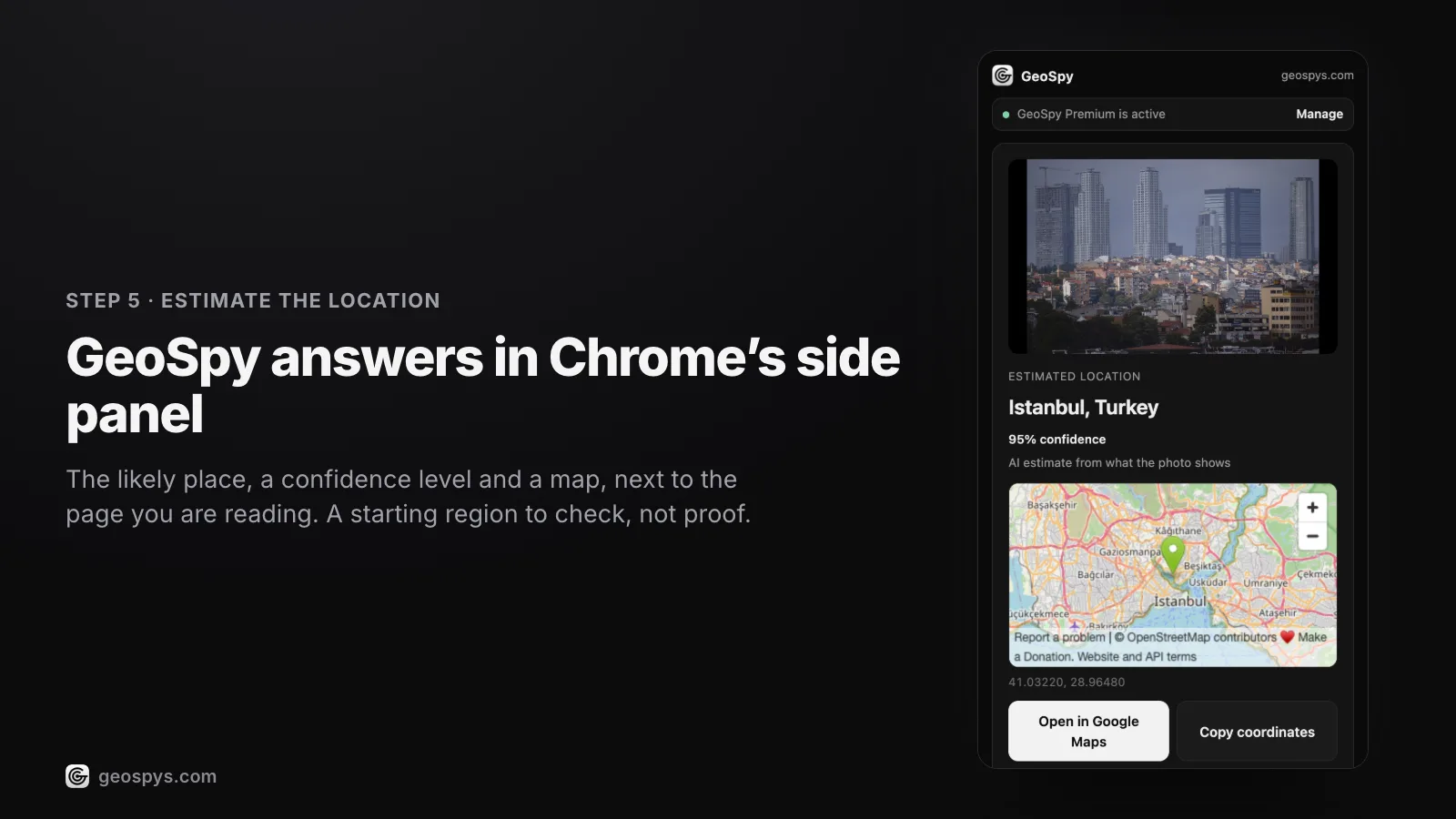
Right-click an image and choose “Find where this photo was taken”. A side panel shows the estimated place, a confidence percentage and a map. If a JPEG still carries GPS in its EXIF, the answer comes from those coordinates; otherwise it is an AI estimate from visible clues.
GeoSpy – Photo Location Finder comes from geospys.com, which publishes this blog, so weigh this entry with that in mind. It reached the Chrome Web Store on October 4, 2026, so it is the newest tool here. Installing it is free. Analysis needs a geospys.com account with GeoSpy Premium, at US$7.99 a week or US$29.99 a year. The GeoSpy Premium guide has the details.
The panel shows the place on an OpenStreetMap map, with buttons to open it in Google Maps or copy the coordinates. Its manifest lists contextMenus, sidePanel, activeTab, scripting and storage, with host access to geospys.com only. Nothing is read until you right-click an image. Only that photo, its GPS data if it has any and a random install ID leave the browser, and the photo is not stored. It works in English and Turkish on Chrome 116 or later.
Use it when reverse search comes back empty, which usually means the scene has never been published. An AI estimate is a lead, not a finding, so check it against street-level imagery before you rely on it. How AI geolocation works explains what the model reads and where it goes wrong. More on the extension itself is on the GeoSpy Chrome extension page.
Which permissions should make you think twice?
Access to all sites. Google’s help page says it lets an extension “read, request or modify data from every page you visit (bank account, Facebook).” Prefer tools that act only when you click, and remove the ones you no longer use.
Four tools here can read every site you open. InVID-WeVerify, Search by Image and the Wayback Machine ask for all sites outright, and EXIF Viewer Pro runs a script on every page. Each has a reason, such as capturing part of a page or checking for archived copies. Still, the access stays on whether you use the feature or not.
RevEye and IPTC’s inspector ask for little more than a menu entry. TinEye and GeoSpy use activeTab, which Chrome’s documentation describes as temporary access to the active tab through a user gesture. In plain terms, they touch only the tab you act on, and only when you act.
One habit helps more than any setting. Keep investigation tools in a separate Chrome profile that is signed out of your personal accounts. Then a broad permission can only see the research you meant it to see.
How do these extensions fit into one investigation?
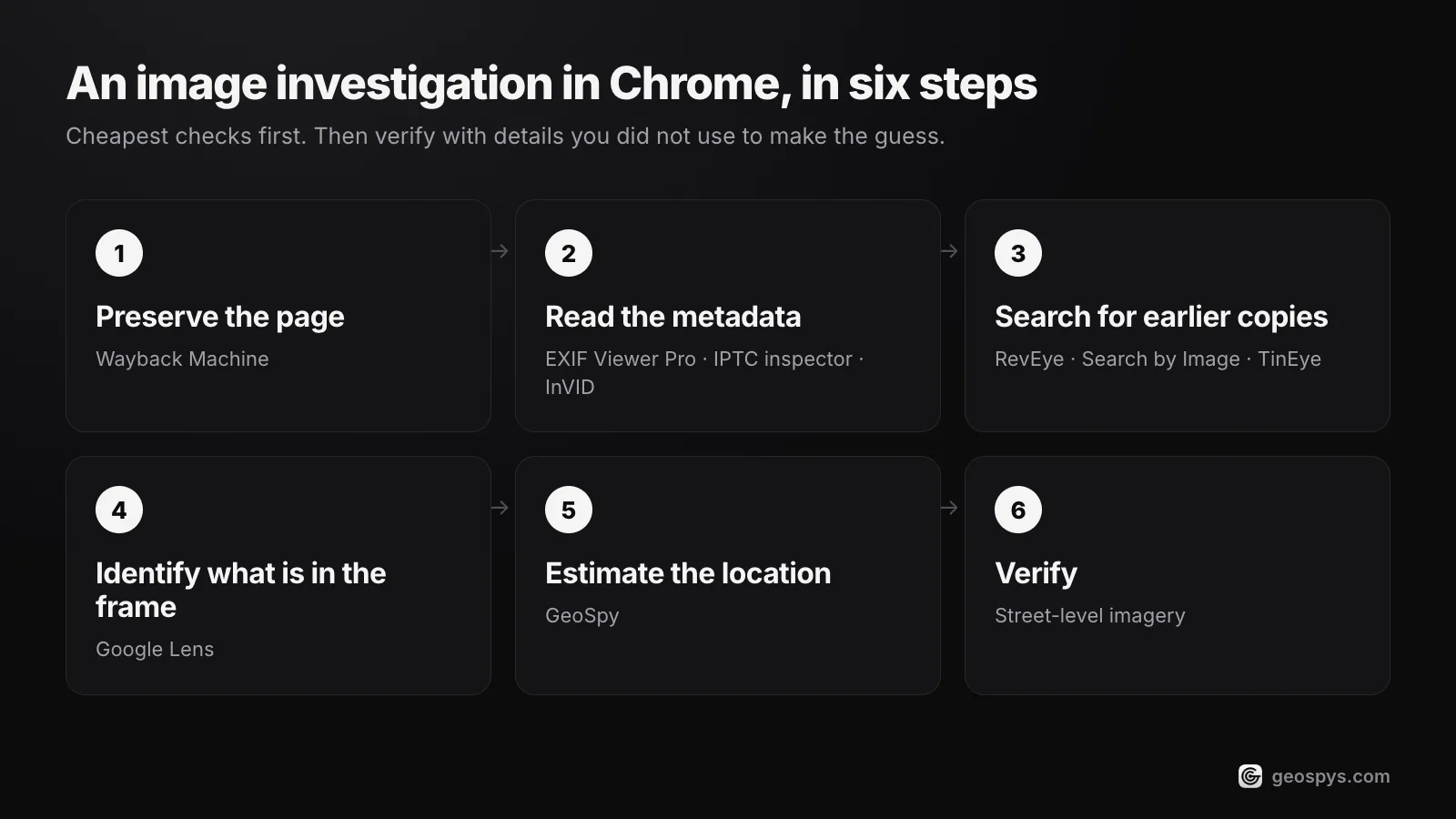
Preserve first, then go from cheapest to most expensive: archive the page, read the metadata, search for earlier copies, use Lens on landmarks and text, and only then ask for a location estimate. Verify any result with details you did not use to reach it.
- Step 1Preserve the pageSave it with the Wayback Machine first, so a later edit or deletion cannot erase the context.
- Step 2Read the metadataCheck EXIF with EXIF Viewer Pro, IPTC’s inspector or InVID’s metadata tab. Coordinates are a claim to test, not proof.
- Step 3Search for earlier copiesRun RevEye or Search by Image across engines, and TinEye sorted by oldest. An earlier copy with a different caption often settles the question.
- Step 4Identify what is in the frameUse Google Lens on landmarks, signs and products, and crop to one subject at a time.
- Step 5Estimate the locationIf nothing matches, an AI estimate such as GeoSpy gives you a starting region to check.
- Step 6VerifyConfirm the place in street-level imagery, using details you did not use to form the guess.
The reasoning behind that order, and what to record at each step, is in the OSINT photo geolocation workflow. To decide whether an image is genuine at all, start with how to verify if a photo is real.
Frequently asked questions
- Are OSINT Chrome extensions safe to install?
- The ones here come from known publishers, but safety depends on what each one can read. Check the permissions before you install, prefer tools that act only when you click, and keep investigation extensions in a separate Chrome profile.
- Is InVID-WeVerify free?
- Yes, the plugin is free to install. Some features, such as Twitter network analysis and CheckGIF, are reserved for fact-checkers, journalists and researchers, and some newer tools need registration.
- Can a Chrome extension tell where a photo was taken?
- Sometimes. A metadata viewer shows GPS coordinates if the file still has them, and reverse search can find the place if the scene was published before. Otherwise an AI tool such as GeoSpy gives an estimate with a confidence percentage, which you then verify.
- Which extension shows where an image first appeared?
- TinEye’s official extension, with its default order set to Oldest. It lists the earliest copies TinEye has indexed, which is not always the true original, so treat the oldest result as a lead.
- Do these extensions work in other browsers?
- Several do. Search by Image is also available for Edge and Safari, and the Wayback Machine extension supports Firefox, Edge and Safari as well. GeoSpy needs Chrome 116 or later.
Sources
- Fake news debunker InVID WeVerify VeraAI — Chrome Web Store100,000 users and version 0.93, updated July 28, 2026 (as of October 2026); makers, features and data practices.
- Search by Image — Chrome Web Store400,000 users and support for more than 30 search engines (as of October 2026).
- The Internet Archive Wayback Machine Browser Extension Privacy Policy — Internet ArchiveDefault URL checks, retention and Private Mode.
- IPTC Photo Metadata inspector — Chrome Web StoreHands the image link to IPTC’s Get Photo Metadata tool.
- EXIF Viewer Pro privacy policy — exifviewers.comStates the extension may use Google Analytics for feature usage and errors.
- Permissions requested by apps and extensions — Chrome Web Store HelpWhat access to all websites allows an extension to do.
- Search with an image on Google — Google Search HelpSearch with Google Lens from Chrome’s right-click menu.
Keep reading
The Best Reverse Image Search Tools, Compared
Google Lens, Yandex, Bing and TinEye do different things. A comparison of what each engine is good at, and when to reach for AI geolocation instead.
· 6 min read
An OSINT Photo Geolocation Workflow
A repeatable order for placing an image, the discipline that keeps it honest, and the point where continuing stops being research and becomes surveillance.
· 4 min read
How to Verify if a Photo Is Real
Three separate questions hide inside "is this photo real". A verification order that answers each one, and the checks that fail more often than people expect.
· 4 min read
How to Find a Photo’s Location With a Chrome Extension
A Chrome extension can find a photo’s location from any web page. How GeoSpy reads GPS data first, estimates from visible clues otherwise, and where it stops.
· 11 min read