
How to View EXIF Data in Chrome, With or Without an Extension
· 8 min read
Short answer
Chrome has no built-in EXIF viewer, so there are three routes. Open the image in its own tab, save it and read it with your computer’s photo viewer. Paste its address into an online viewer. Or install an EXIF viewer Chrome extension that shows camera, date and GPS tags on a right-click.
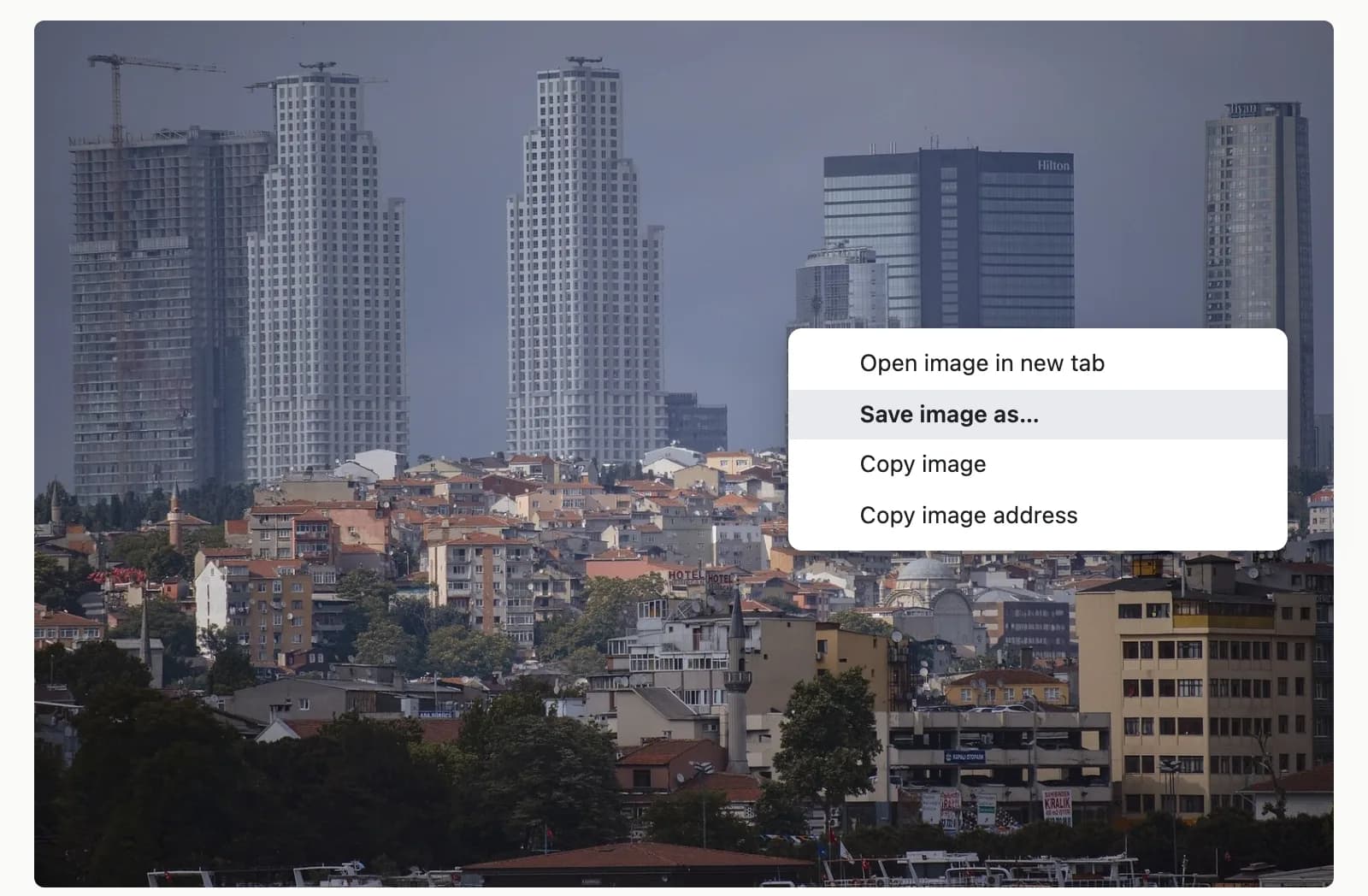
Chrome will display almost any image, but it will not tell you what is inside the file. Right-click a photo and Chrome offers commands such as Open image in new tab, Save image as, Copy image and Copy image address, plus an image search. None of them shows metadata. Reading a web photo’s EXIF data means handing the file to something that can: your computer, a website or an extension.
Why do most web images show no EXIF data?
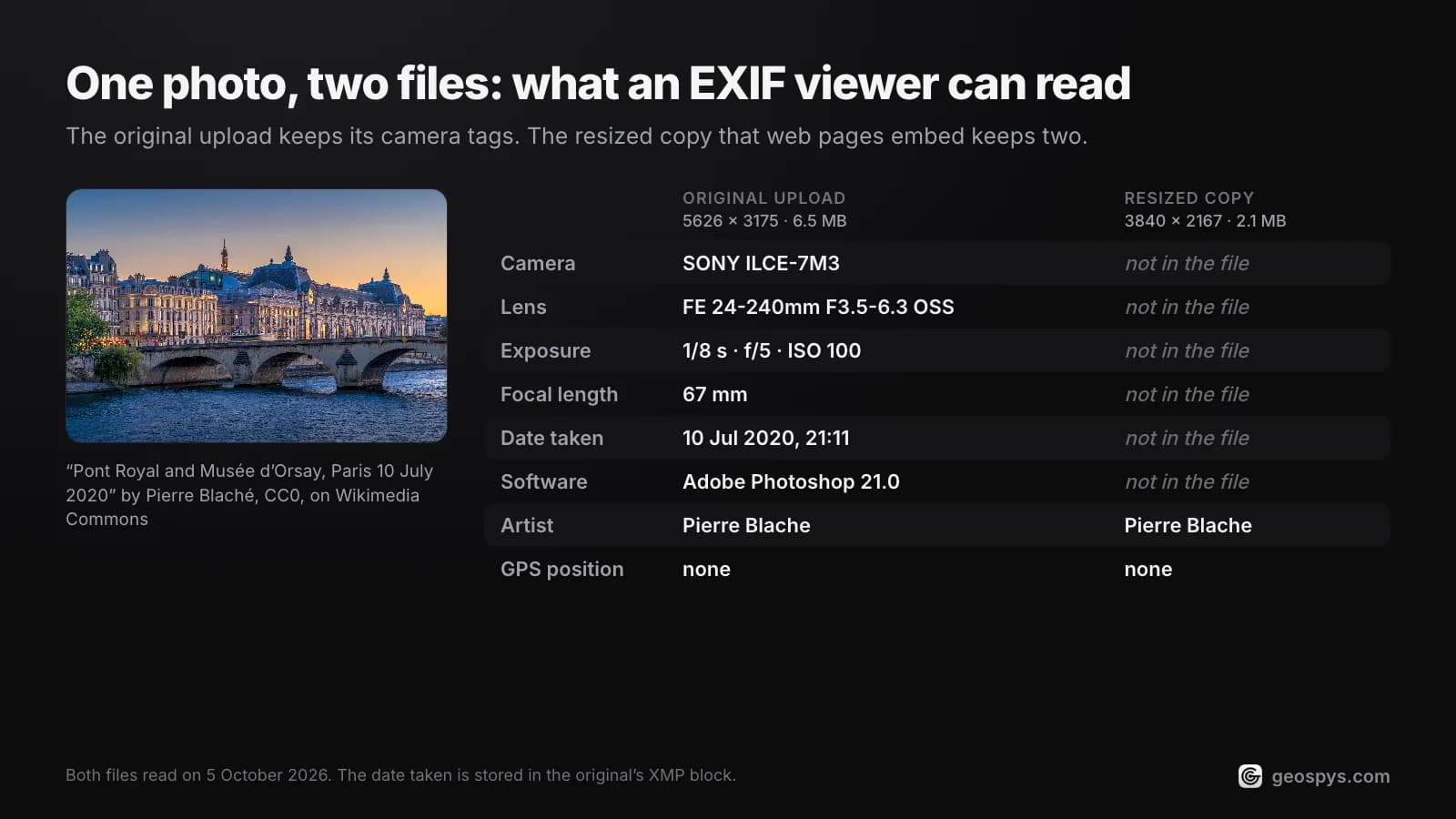
Usually because the site removed it before the image reached you. Platforms that publish photos typically re-encode uploads and discard EXIF, GPS included. A viewer can only read what arrived in your browser, and no tool can rebuild tags that were deleted.
So expect blank results on social feeds, and better odds on photo sites built for photographers and on shared cloud links, which tend to serve the original file. Which apps strip EXIF data covers the pattern platform by platform, so it is not repeated here. For what the tags record in the first place, start with what EXIF data is.
How do you view EXIF data in Chrome without an extension?
Open the image in its own tab, save that file, and read it with the photo viewer already on your computer. Nothing is installed and nothing is uploaded, so the photo never leaves your machine.
- Step 1Open the image in its own tabRight-click the photo and choose Open image in new tab. Chrome now shows the bare file, and the tab title gives its name and pixel size, such as
photo.jpg (4000×3000). A width of only a few hundred pixels usually means a preview, not the original. - Step 2Save the file, not a copyRight-click the image again and choose Save image as. Skip Copy image: Chrome puts the decoded pixels on the clipboard, not the original file, so pasting it into an editor gives you an image with no EXIF.
- Step 3Read it on your computerOn a Mac, open the file in Preview and choose Tools > Show Location Info. If that item is grayed out, the photo has no location data. The Inspector window shows more of the tags. For Windows, follow the Windows and Mac guide.
- Step 4Need every tag?Built-in viewers show a subset. ExifTool, a free command-line program, prints the lot with
exiftool photo.jpg. Which viewer suits which job is covered separately.
This route is slower than an extension, but nobody else sees the photo and nothing new gets access to your browser. Delete the saved copy afterwards if you only needed a quick look.
Can you read EXIF data online?
Yes. Upload sites such as Jimpl and Exif Info run ExifTool on their servers and show the metadata it finds, and both accept an image URL, which pairs well with Chrome’s Copy image address. The catch is that the photo, or its link, goes to a third party.
Their own pages spell out what happens next. Jimpl caps uploads at 50 MB and says it deletes all files within 24 hours. Exif Info says it deletes the original right after processing, but keeps a thumbnail and the extracted metadata for up to three days. exif.tools works differently: it says local files are processed in your browser, though photos with GPS load a map from OpenStreetMap.
For a photo of your own street, those details matter. The privacy risks in photo metadata are the reason to read a file locally whenever you can.
Which EXIF viewer Chrome extensions are worth installing?
Five current Chrome Web Store listings read EXIF from the page you are on. They differ less in features than in how much of the web each one can read, so compare site access, last update and ratings before you install one.
| Extension | Users | Rating | Last updated | Site access |
|---|---|---|---|---|
| EXIF Viewer Classic | 80,000 | 3.5 (643 ratings) | May 31, 2024 | All websites |
| EXIF Viewer Pro | 70,000 | 3.4 (466 ratings) | June 2, 2024 | All websites |
| Exif Viewer by LinangData | 40,000 | 2.8 (18 ratings) | August 29, 2023 | None requested |
| Exify | 2,000 | 4.3 (17 ratings) | September 22, 2026 | All websites |
| EXIF Metadata Viewer by ternera | 1,000 | 4.8 (4 ratings) | July 19, 2025 | Only the tab you right-click |
- EXIF Viewer Classic: right-click any image and a dialog of EXIF properties appears. Its options page adds templates, a cache and site exclusions.
- EXIF Viewer Pro: right-click, choose Show Exif data, and a panel opens on the right side of the browser. It can also copy the tags to your clipboard.
- Exif Viewer by LinangData: right-click and choose View Exif Info. Photos with GPS get a Google map in a new tab, and it keeps a history of your last 10 image URLs.
- Exify: hover over any image whose long side is 500 px or more, or right-click and choose Show EXIF. It also reads IPTC, XMP and C2PA Content Credentials, and names the city and country through OpenStreetMap.
- EXIF Metadata Viewer by ternera: right-click and choose View EXIF Data. Its source code is public on GitHub.
Site access is the column to read first. Chrome’s developer documentation says content_scripts match patterns let an extension inject scripts into the matching sites, and Classic, Pro and Exify match every website. That broad match is what puts a warning about reading and changing your data on the websites you visit into the install prompt. Classic’s listing explains that prompt, and Exify’s own site says it needs the access to read image metadata.
The narrow alternative is the activeTab permission, which ternera’s extension uses. Google’s guidelines say it shows no permission warning and grants temporary access only to the site you are on when you use the extension. LinangData’s viewer requests no site access at all, though its last update was in August 2023.
What if the photo has no GPS data?
Then no EXIF viewer can say where it was taken, because the coordinates are gone. What survives is the scene itself: signs, buildings, plants, road markings and light. Reading those clues is a different job from reading metadata.
Finding a photo’s location without EXIF walks through doing it by hand. If the photo is already open in Chrome, there is also a shortcut built for exactly this step.
The GeoSpy Chrome extension is a location tool, not an EXIF viewer: it does not show the camera model or a table of tags. Right-click any image, choose Find where this photo was taken, and the answer opens in Chrome’s side panel. If a JPEG still carries GPS coordinates, the extension reads them before re-encoding anything, and the answer comes from them. WebP, AVIF and GIF images are converted to JPEG, which drops metadata, so that GPS check always runs first. Without GPS, you get an AI estimate from the visible clues, with a confidence percentage. HEIC files are not supported.
It asks for contextMenus, sidePanel, activeTab, scripting and storage, and the only site it can reach is geospys.com. Installing it is free. The analysis itself needs a geospys.com account with GeoSpy Premium, at US$7.99 a week or US$29.99 a year.
Frequently asked questions
- Does Chrome have a built-in EXIF viewer?
- No. Its right-click menu for images has commands such as Open image in new tab, Save image as and Copy image address, but none of them displays metadata. Save the file and use your computer’s viewer, or add an extension.
- Can you view EXIF data in Chrome on a phone?
- Not through an extension. Chrome extensions run on a computer, and on a phone the Chrome Web Store only offers Add to Desktop. Instead, touch and hold the image, save it, and check the copy in your photo app, as in the iPhone guide.
- Does Copy image keep EXIF data?
- No. Chrome writes the decoded image to the clipboard as a bitmap rather than copying the original file, so an image pasted into an editor starts with no EXIF. Use Save image as when the metadata matters.
- Can an EXIF viewer show where a photo was taken?
- Only if the file still holds GPS tags. Some extensions then link to a map: LinangData’s Exif Viewer opens Google Maps in a tab, and Exify names the city and country. You can also read the coordinates yourself.
- Is it safe to install an EXIF viewer extension?
- Judge each one by its listing. Check the last update and the site access it asks for, prefer one that needs no standing access, and set broader ones to On click in Chrome’s extension settings.
Sources
- EXIF Viewer Classic — Chrome Web Store80,000 users, version 3.0.1, updated May 31, 2024; the listing explains its all-sites access prompt.
- EXIF Viewer Pro — Chrome Web Store70,000 users, version 3.0, updated June 2, 2024.
- Permission warning guidelines — Chrome for DevelopersactiveTab displays no warning and grants temporary access to the site you are on.
- Declare permissions — Chrome for DevelopersContent script match patterns let an extension inject scripts into matching sites.
- Install and manage extensions — Chrome Web Store HelpSite access settings, and Add to Desktop when installing from a phone.
- Download a file — Google Chrome HelpSave Image As on a computer; touch and hold to save on a phone.
- system_clipboard.cc (Copy image) — Chromium source codeCopy image writes a decoded bitmap to the clipboard, not the original file.
- image_document.cc (image tab title) — Chromium source codeAn image opened on its own is titled with its file name and pixel size.
- See where a photo was taken using Preview on Mac — Apple SupportTools > Show Location Info, grayed out when a photo has no location.
- Online EXIF metadata viewer — JimplUploads up to 50 MB; files deleted within 24 hours, by the site’s own statement.
- Exif Info: view meta-data in your files — Exif InfoOriginal deleted after processing; thumbnail and metadata kept for up to three days.
- ExifTool by Phil Harvey — exiftool.orgThe command-line metadata reader both upload viewers say they run.
Keep reading
How to View EXIF Data on Windows and Mac
Read camera settings, timestamps and GPS coordinates with tools already on your computer: Windows File Explorer, macOS Preview, and exiftool for hidden tags.
· 4 min read
The Best EXIF Viewer Tools (and When You Need One)
Your operating system already reads most metadata. Which tools show the fields it hides, and why uploading a photo to a web viewer deserves a second thought.
· 4 min read
How to Find Photo Location Without EXIF Data
The metadata is gone, so what is left? Three approaches that work on a stripped photo, what each realistically achieves, and where they stop.
· 5 min read
How to Find a Photo’s Location With a Chrome Extension
A Chrome extension can find a photo’s location from any web page. How GeoSpy reads GPS data first, estimates from visible clues otherwise, and where it stops.
· 11 min read