
Where Was This Screenshot Taken? How to Find Out
By Sam D. · · 6 min read
Short answer
A screenshot has no GPS tag for the place it shows, so there is nothing to read. Instead, trace the original image with reverse image search, read the visible clues such as signs and architecture, check the app interface in the frame, and use an AI estimate to verify against a map.
Find where your photo was taken
Upload a photo: GeoSpy AI reads its GPS data if it has any, and otherwise estimates the place from what it shows.
“Where was this screenshot taken?” gets asked in two different ways. Some want to know where a screenshot was captured, meaning where the phone was or which app it came from. Most want to know where the place in the picture is. Both are answerable, but not from metadata, and the second needs a different toolkit from the one you use for a normal photo.
If you want the metadata side first, we cover it separately in do screenshots have location data. The short version is that a screenshot is a brand-new file, so it does not inherit the original photo’s coordinates. This guide starts where that one stops.
Can you find where a screenshot was taken from its metadata?
Almost never. A screenshot records the device, the dimensions and when you captured it, but no GPS position, and the original photo’s tags are not copied across. The metadata can tell you about the screenshot, not about the scene.
A phone fixes its position at the moment a camera captures an image. A screenshot involves no camera, so nothing is written. If you hold the screenshot file and look at its details, you will see a capture time, which is when the screenshot was saved, and little else. That is useful for dating when someone grabbed it, but it will not point to a place.
How do you find where the place in a screenshot is?
Treat it like any photo with no EXIF: read the signs, language, architecture, vegetation and road markings, then confirm candidates on a map. The visible content survives a screenshot; only the tags are lost.
The image is still a picture of a real place, and everything a human or AI model reads in it is intact. Work through the frame systematically before you reach for any tool.
- Text. Shop signs, street names, phone prefixes and the language itself narrow the country quickly.
- Roads. Which side traffic drives on, the colour of centre lines and the shape of road signs differ by country.
- Buildings and plants. Roof style, brick or stucco, palm trees or pines point to a region.
- Skyline or terrain. A distinctive ridge or tower can be matched in map imagery.
Our guides on finding a photo’s location without EXIF and identifying a country from photo clues go through this in more detail, and what is this building helps when a single landmark is the main clue.
Can you trace a screenshot back to the original picture?
Often, yes. Run the screenshot through reverse image search such as Google Lens, cropping out the phone’s status bar and app buttons first. A match leads to the original post or page, which may name the place.
Crop tightly to the picture itself. Interface elements like a status bar, a caption or a play button confuse the match. Google’s own help page describes uploading an image to Search by image, and in Chrome you can right-click an image and choose Search with Google Lens. If the first tool finds nothing, try another engine, because they index different parts of the web. How Google Lens and Yandex compare shows when each does better, and reverse image search on a phone covers the mobile steps.
What does the app interface in a screenshot tell you?
It tells you where the screenshot came from, not where the scene is. The app’s layout, the clock and battery icons, the language of the interface and a visible username or watermark help you find the source post or account.
Look at the edges of the frame. A familiar layout identifies the app, so you can search that platform for the same picture. A visible handle or watermark gives you a lead on the creator. The interface language and time format are weak hints about where the person who took the screenshot lives, which is not the same as where the scene is, so do not lean on them. Only use these details to find the original public post.
How can AI estimate the location of a screenshot?
An AI location tool analyses the visible scene and estimates the city and country, with a confidence score on a map. It works from the pixels, so a clean crop of the scenery helps. The result is a lead to verify, never a street address.
GeoSpy’s photo location finder reads GPS from a file’s EXIF data if it is present. A screenshot has none, so it falls back to an AI model that estimates the city and country from architecture, signs, vegetation and light, and shows the result on a map with a confidence score. The site’s sample results show the idea: a San Francisco street of Victorian row houses with no GPS data returns San Francisco, USA at 100% confidence, Kyoto, Japan returns 95% and the Grand Canyon 95%.
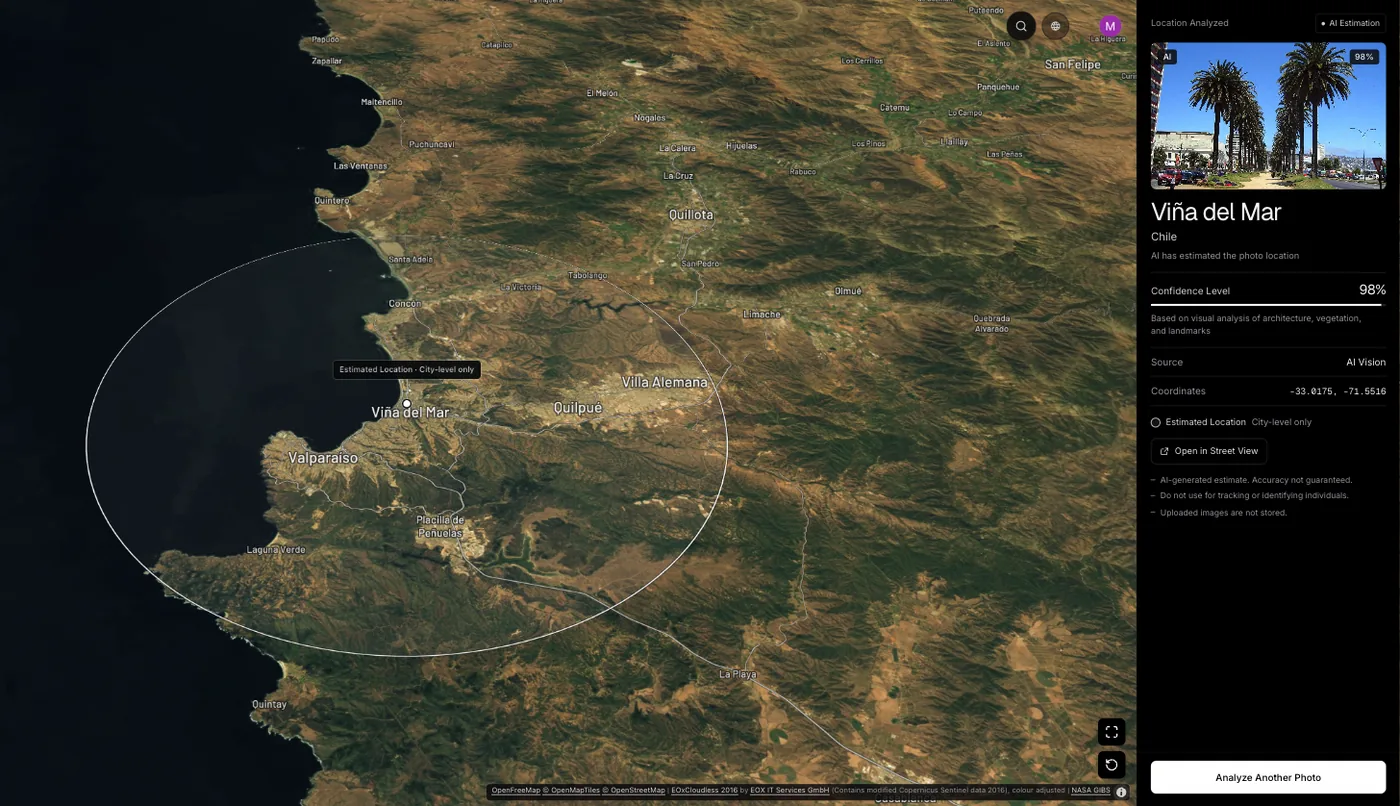
Resolution matters here. A screenshot is captured at screen size, so small details such as distant signage can be lost; if you can find a higher-resolution copy through reverse search, analyse that instead. Then confirm any candidate against a map or street imagery. How AI geolocation works explains why a confident answer still needs checking.
Website analysis costs $9.99 a week or $39.99 a year, and you can cancel any time; a single photo costs $1.99, paid once. The GeoSpy iPhone app has a free trial, the Chrome extension lets you right-click a photo on a page, and the Street View guessing game on the site is free once a day for practice.
Frequently asked questions
- Can you tell where a screenshot was taken?
- Not from the file. A screenshot records the device and capture time but no GPS position. You can only work out the place shown, using visible clues, reverse image search or an AI estimate.
- Does a screenshot keep the location of the original photo?
- No. It is a new image made from what is on screen, so the original’s EXIF tags, including GPS, are not copied. Do screenshots have location data explains what it does keep.
- How do I find the original of a screenshot?
- Crop out the status bar and buttons, then upload the picture to a reverse image search such as Google Lens or Yandex. A match can lead to the original page, which may name the place.
- Can I find the location of a Snapchat or Instagram screenshot?
- You can estimate the pictured place from the scenery. A screenshot of a story or message tells you nothing about the sender’s position. See how location sharing works on Snapchat for what the app itself exposes.
- How accurate is an AI estimate from a screenshot?
- It gives a city or region and a confidence score, never a street address. Accuracy depends on how distinctive the scene is and on image quality, so confirm any result against a map before relying on it.
Sources
- Search with an image on Google — Google Search HelpSearch by image upload and Google Lens in Chrome.
- GPS Accuracy — GPS.govA camera’s GPS fix is typically within 4.9 m (16 ft) under open sky, precision a screenshot never records.
Keep reading
Do Screenshots Have Location Data?
A screenshot is a new image, so it never inherits the original photo’s GPS tags. What it does carry, and why that still does not make it anonymous.
· 4 min read
How to Find Photo Location Without EXIF Data
The metadata is gone, so what is left? Three approaches that work on a stripped photo, what each realistically achieves, and where they stop.
· 5 min read
How to Reverse Image Search on Your Phone
Every engine works from a mobile browser, no app required. The routes on iPhone and Android, plus the cropping step that decides whether you get a result.
· 4 min read
How to Identify a Country From Photo Clues
Regulated things beat natural things. The clues that change abruptly at borders, ordered by how much each one narrows the search and how fast you can read it.
· 4 min read
How Does AI Geolocation Work?
An AI geolocation model does not look anything up. It reads the same visual evidence a trained human would, and its limits follow directly from that.
· 4 min read