
How to Hide Your Location in Photos Before Sending Them
By Arthur L. · · 6 min read
Short answer
To hide location in photos before you send them, clean two layers. Take the GPS position out of the file: turn off Location in the iPhone share options, tick Remove location data in Samsung Gallery, or use a metadata remover. Then check the picture for street signs, house numbers, plates and window views.
Find where your photo was taken
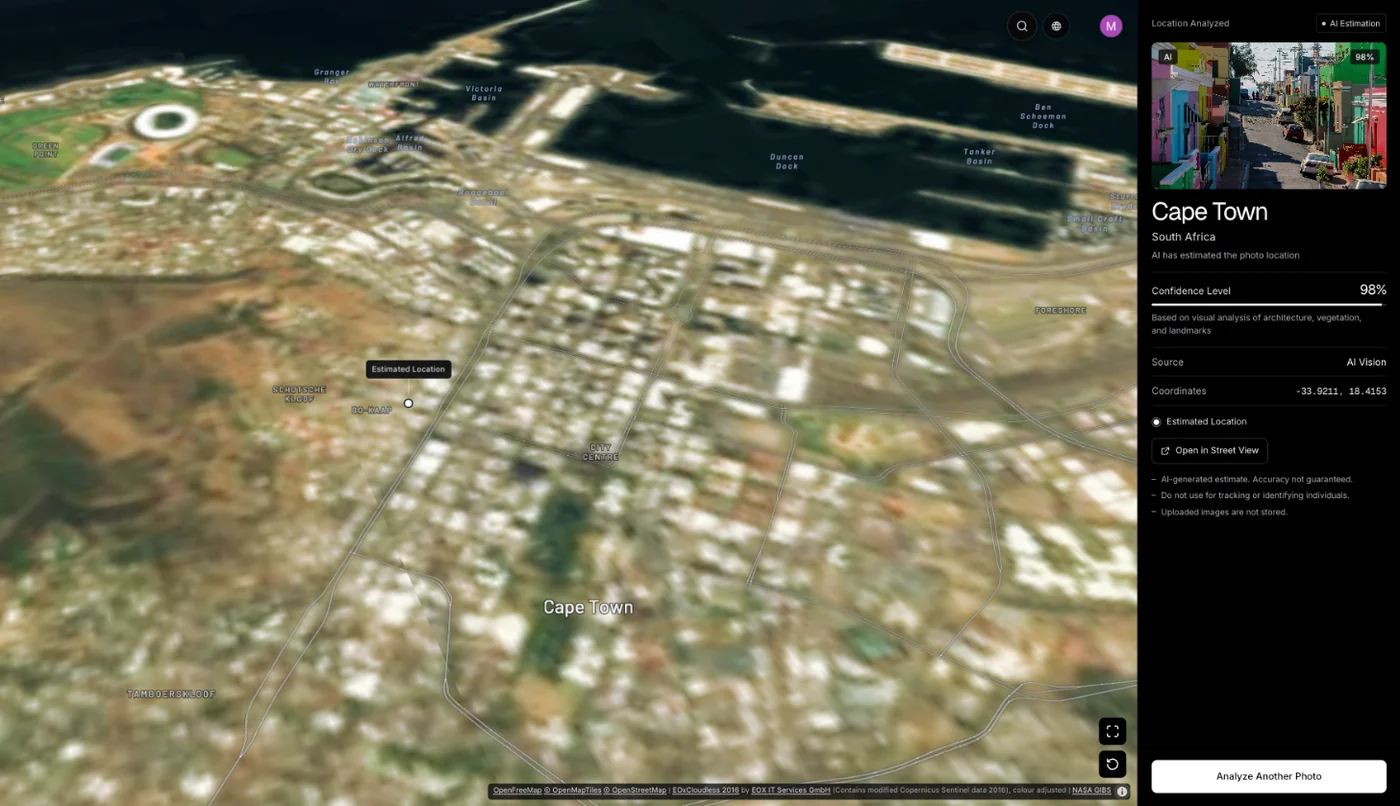
Upload a photo: GeoSpy AI reads its GPS data if it has any, and otherwise estimates the place from what it shows.
A photo you send can give away where you are in two ways: as GPS coordinates stored inside the file, and as things in the frame that a stranger can recognize. The first goes with a switch or a tool. The second needs a crop, a blur or a little patience before you post.
The second layer matters because AI image geolocation estimates a place from the scene itself, with no GPS in the file. The sections below cover iPhone and Android, the ways of sending that hand over the original file, and what to keep out of the frame.
Which parts of a photo can reveal your location?
Two parts. The file can carry the GPS position your phone recorded, readable by anyone who gets the original. The picture can show the place: a street sign, a house number, a license plate or the view from a window. Hiding your location means dealing with both before you send.
The file layer is the precise one. A phone’s GPS is typically accurate to within 4.9 meters (16 feet) under open sky, so a geotagged picture taken at home can lead a stranger to the door. It is also the easier layer to fix. The picture layer takes your own eyes, and Google says as much in its Google Photos help: even if you hide a photo’s location from people, they can guess it from landmarks in the picture.
How do I share an iPhone photo without its location?
Tap Share, then Options, and turn off Location; Apple’s Personal Safety guide says “Location Not Included” then shows above the Options button. The switch is missing from Apple’s iPhone User Guide for iOS 27, so if your share sheet lacks it, take the location off the photo itself first.
How to turn off location on iPhone photos has the steps for clearing a photo’s location and for keeping the Camera from saving one. One share option works against you here: All Photos Data, which iOS 27 offers with AirDrop, sends the untouched original together with its metadata and edit history. Keep it off when location matters.
How do I share an Android photo without its location?
On a Samsung Galaxy, tick Remove location data on Gallery’s share screen before you choose the app. Google Photos keeps location out of new shares inside the app unless you allow it, partner sharing aside, but a copy you download and email still has it. On other phones, clean the file first.
Removing location from photos on Android goes through every route, including the camera switch that stops new photos recording GPS in the first place.
Does the way you send a photo change what it reveals?
Yes. A route that hands over the original file keeps its GPS, such as AirDrop with All Photos Data on, or a download from Google Photos sent by email. Apps that publish photos usually strip it, and chat apps vary, so test the one you use before you trust it.
The test is quick: message a photo with GPS to your own account through the app, save the copy that arrives and open it in a metadata viewer. Which apps strip EXIF data explains the pattern behind the results. Phone makers add their own switches too. For the Galaxy Z Fold6 and Z Flip6, Samsung documents a Messages setting, Remove location from shared images, which strips GPS metadata from photos before they go out.
What if my phone has no option to hide the location?
Clean the file before you send it. The photo metadata remover on this site strips GPS and other EXIF data in the browser, and the photo is not uploaded, so it does not depend on your phone’s settings. Send the cleaned copy; the original keeps its tags.
Then open that copy in the photo metadata viewer, which reads the GPS position, date and camera details: empty GPS fields mean the file is ready to go. A screenshot is the blunt alternative, since it starts a new file without the original tags, though at screen resolution.
What should you crop or blur before you send a photo?
Anything a stranger could read, search for or match on a map: street signs, house and apartment numbers, license plates, shop names, a distinctive skyline and the view from your window. If the background still names the place, crop tighter, or wait until you have left before posting.
- Text: street names, house numbers, plates, parcels with your address, school or work badges.
- Landmarks: a church tower, a bridge, a mountain or a coastline behind you.
- Windows and reflections: the view outside, and what a mirror or a shop window shows.
- Timing: a trip photo shows where you are right now. Police advice on posting while on vacation is to share it after you are home.
How one selfie can reveal where you live shows how far a single background can narrow things down.
Can AI tell where a photo was taken from the picture alone?
It can estimate it. GeoSpy reads the GPS position from the file when it has one; without GPS, an AI model estimates the place from what the photo shows and returns a location with a confidence score on a map. That makes the picture layer worth checking as carefully as the file.
For a photo that matters, test it before you post: strip the metadata, then see what the scene alone gives away. If the estimate lands near your home, someone else’s could too.
Frequently asked questions
- Does a screenshot hide the location of a photo?
- It hides the GPS tag, because a screenshot is a new image that does not carry the original’s metadata. It keeps everything visible on the screen, so crop out signs and views as you would in the photo itself. Do screenshots have location data? covers what a screenshot does store.
- Does turning off location for the camera hide it in old photos?
- No. It only stops new photos from saving GPS. Photos you already took keep their location until you remove it or leave it out when you share.
- Is removing the GPS enough to hide where a photo was taken?
- Not when the picture shows the place. Google notes that people can guess a photo’s location from its landmarks even when the location is hidden, so check the background as well as the file.
- Not by default. Google says new albums, links and conversations leave location details out unless you choose to include them; partner sharing is the exception. A photo you download and send as a file is different, because it keeps the location your camera saved.
- Should I turn off location in my camera entirely?
- If you often send original files, it keeps GPS out of new photos from the start. Google lists the trade-off: photos without a location may not show in your map view, in location searches or in trip Memories.
Sources
- Manage location metadata in Photos — Apple (Personal Safety User Guide)Published September 2026: Share > Options > Location off, with “Location Not Included” shown above the Options button.
- Share photos and videos on iPhone (iOS 27) — Apple (iPhone User Guide)The iOS 27 share options list no Location switch; All Photos Data shares the original file with edit history and metadata, with AirDrop only.
- Understand, find & edit your photos’ locations — Google Photos HelpShare photo locations, partner sharing, downloaded and emailed copies keeping the original location, and guesses from landmarks.
- GPS Accuracy — GPS.govGPS-enabled smartphones are typically accurate to within a 4.9 m (16 ft) radius under open sky.
Keep reading
How to Turn Off Location on iPhone Photos
Three switches control location on iPhone photos: one for new shots, one for photos you already took, one for each share. Steps for iOS 26 and iOS 27.
· 8 min read
Which Apps Strip EXIF Data When You Share a Photo?
Which platforms remove photo metadata on upload and which pass it through untouched — plus how to test any app yourself in under two minutes.
· 4 min read
One Selfie Can Reveal Where You Live
Even with GPS data stripped, a selfie can give your home away: window views, house numbers, plates, reflections. What to check before you post, and why.
· 11 min read
The Privacy Risks Hidden in Photo Metadata
What a geotagged photo gives away, why camera serial numbers matter as much as coordinates, and which habits cut the exposure without losing your archive.
· 5 min read